In the age of digital documents, bookmarking is a common feature that allows users to navigate through a PDF file easily. It provides a convenient way to mark important sections or pages and quickly access them with a single click. The need for bookmarking has become more critical as the amount of information and content in PDFs grows. But in some instances, users may want to remove bookmarks from a PDF file. The reasons for eliminating bookmarks can vary from personal preference to needing a more streamlined and clutter-free reader experience. In addition, bookmarks may create accessibility issues, making it challenging for people with disabilities to navigate through the document. Luckily, you can use different software tools and methods to remove bookmark from PDF files. This article will guide you on efficiently eliminating bookmarks from a PDF file. It can be your ultimate solution for removing bookmarks from PDF documents.
-
Solutions
Brief Info
Learn More
-
Learn what PDF bookmarks are and different types of bookmarks.
-
Explore the reasons why users opt to unbookmark in PDF.
-
Use AcePDF editor to open PDF and delete bookmarks easily and quickly.
-
Follow these steps on seamlessly removing bookmarks from your PDF documents using Adobe Acrobat Pro.
-
Review of 3 other excellent PDF editing tools you can use.
-
Find answers to commonly asked questions about removing PDF bookmarks.
-
Final thoughts and essential takeaways of the article.
What are PDF Bookmarks?
PDF bookmarks function as a navigational aid for users to access specific sections or pages within a PDF file easily. Essentially, they act as a table of contents and save users the hassle of scrolling or searching the entire document. These bookmarks can be created by users or generated automatically by the document author. Moreover, PDF bookmarks come in different types and serve various purposes. Some common types of bookmarks include:
Chapter Bookmarks: These bookmarks are used to navigate between different chapters or sections within a document. It provides a convenient way to jump between different sections of a PDF file. You can easily customize chapter bookmarks based on the document's structure and organization.
Heading Bookmarks: These bookmarks are created based on the headings or titles within the document. They allow users to jump directly to a specific section or topic. Also, it helps improve the overall navigation and readability of the document.
Page Bookmarks: These are used to mark specific pages within a document. You can easily navigate to a desired page by clicking the corresponding bookmarks in the sidebar. Plus, page bookmarks visually represent the document's structure and enable users to navigate to specific pages easily.
Common Reasons to Remove Bookmarks
When removing bookmarks becomes necessary: Removing bookmarks becomes essential in various situations. You can use these reasons to find out if you need to remove bookmarks from a PDF file. Read them below to gain a better understanding.
A. The bookmarks are no longer relevant or useful
Bookmarking is often done to access specific sections or pages within a PDF document quickly. However, the document's content may change or evolve over time, rendering certain bookmarks irrelevant or useless. This can result in a cluttered and confusing bookmark panel, making navigating through the document efficiently difficult.
B. The structure or organization of the PDF has changed
If the document undergoes significant changes in its structure, such as the addition or deletion of sections, chapters, or pages, the existing bookmarks may no longer accurately reflect the new organization. This can confuse users who rely on bookmarks for navigation.
C. It doesn't require bookmarks for the intended purpose
In some cases, the purpose of the PDF file may not require using bookmarks. For example, if the PDF file is a simple text document without any complex structure or chapters, bookmarks may not be necessary. It often depends on the content's nature and the PDF file's intended use.

How to Delete Bookmarks PDF on Windows/Mac
Distinctive Feature: It has the best OCR technology that can convert scanned text into editable and searchable content.
What is it best for: It is best for annotating, editing, and compressing PDF documents without compromising quality.
Managing PDF files on Windows and Mac systems is made easy with AcePDF software. It offers numerous features, including the ability to delete bookmarks in PDF files. With the "Bookmark" feature, users can add or delete bookmarks in PDF documents and customize existing bookmarks to suit their specific needs. This is particularly useful for navigation and organization purposes. Editing and customizing bookmarks can be done by renaming or reordering them. Removing bookmarks is also simple, as users can click the "Delete" button or choose the delete option by right-clicking on a bookmark. AcePDF also allows for text replacement, adding annotations, merging or splitting PDF files, and other document management tasks. Its advanced OCR feature enables users to convert scanned PDF to searchable PDF format. If you want complete control over the PDF bookmark editor, AcePDF is the ideal choice. Follow the step-by-step tutorial below to remove PDF bookmarks effectively.
Step 1Get the PDF Bookmark Remover
Click the "Download" button above to install AcePDF on your computer. If you are utilizing a Windows computer, hit on the left button. While for Macbook or Mac computer, click on the right button. Then, follow the prompts in the dialogue box until the software is saved. Once saved, open the tool and start exploring its various features.
Step 2Open Your PDF File with Bookmarks
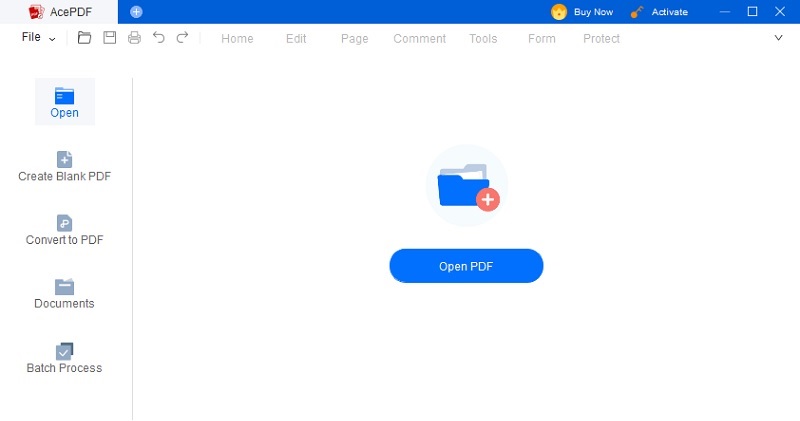
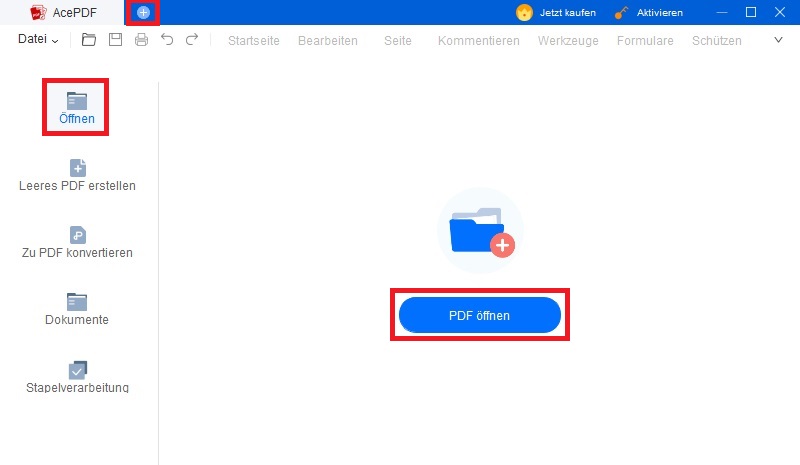
When importing a PDF document, there are several ways to do it. One option is to click the "+" icon in the upper-left corner. It allows you to access your file menu and locate your PDF. Alternatively, you can use the "Open" button in the left section or the "Open PDF" button in the center to import the PDF.
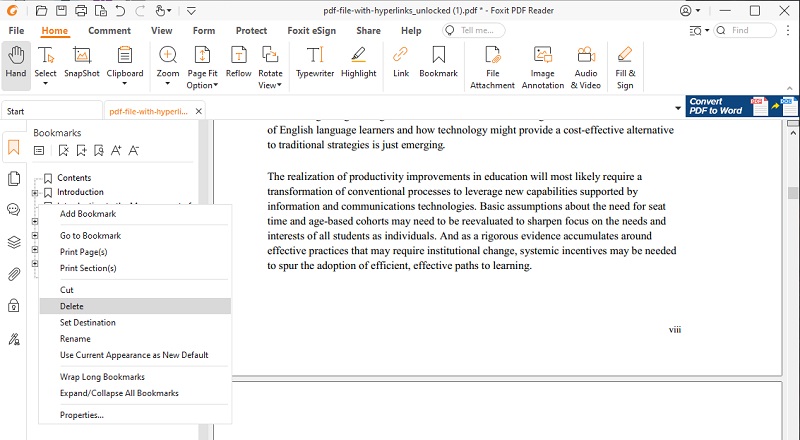
Step 3Initiate Remove Bookmarks on PDF
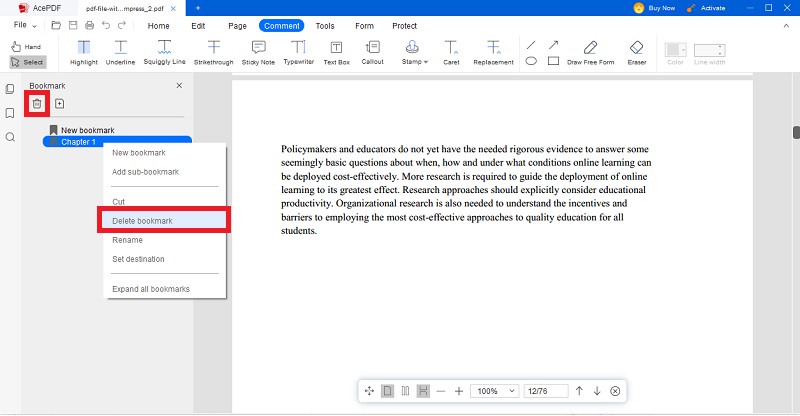
Once you have launched the desired PDF file in AcePDF, locate the "Bookmark" feature in the toolbar or menu options. Click on the "Bookmark" feature on the left side of the interface. You will be presented with the list of bookmarks in your PDF document. You can either select the bookmark you want to remove and press the "Delete" icon. Otherwise, right-click on the bookmark and choose the "Delete bookmark" option from the menu.
Step 4Confirm and Save Changes
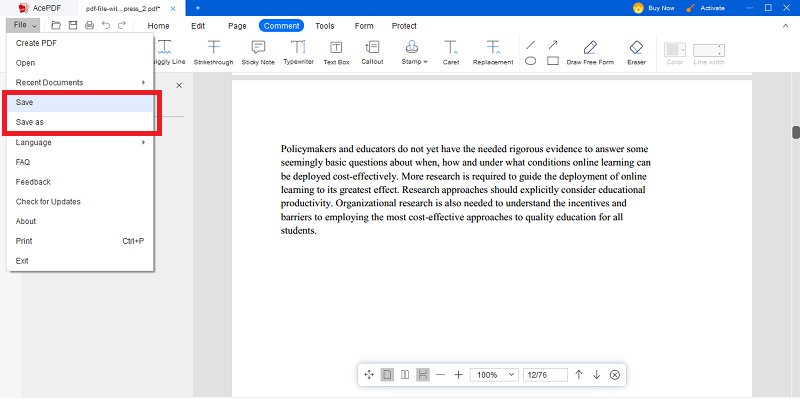
After removing bookmarks from PDF file, confirm the deletion by clicking on the "Save" button or selecting the "Save As" button from the "File" tab in the toolbar. The PDF software will prompt you to select the save location and filename for the modified PDF file. You can save it in the same directory or a specific location.
How to Remove Bookmarks from PDF using Adobe Acrobat Pro
Distinctive Feature: One of the features available is the "Fill & Sign" option, which enables users to complete PDF documents electronically while also allowing them to add a signature.
What is it Best For: It also allows advanced manipulating of PDF files, such as merging multiple PDFs into one and splitting them into separate files.
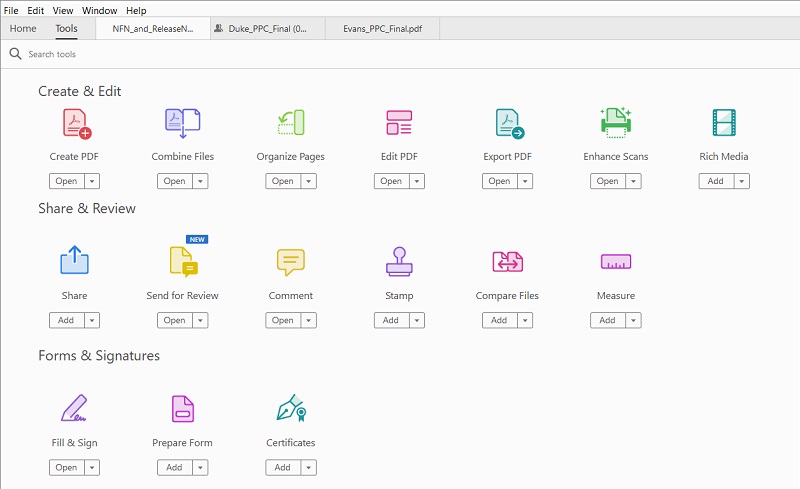
Adobe Acrobat Reader is a highly adaptable software that enables users to perform various functions with Portable Document Format (PDF) files, such as viewing, editing, creating, converting, manipulating, reviewing, signing, and approving documents. One of its exceptional features is managing PDF content through bookmarks. It offers a PDF bookmark remover online for free and a desktop version that starts at $14.99 per month. With Adobe Acrobat Reader, users can add bookmarks to PDF and remove them effortlessly. Furthermore, the software provides the flexibility to customize and organize bookmarks by renaming or rearranging them. It also allows users to set bookmark destinations and specify the indentation level of each bookmark. This feature lets users quickly access specific PDF content sections through bookmarks. Read the steps below on how to delete bookmarks from a PDF document with this tool.
User Guide:
- First, launch Adobe Acrobat Reader on your computer. Then, open the PDF document from which you want to remove the bookmarks from PDF. Head to the "File" tab in the top menu and select the "Open" option.
- You can locate the Bookmarks Panel by clicking on the "View" tab in the top menu and selecting the "Navigation Panels" option. Once the Navigation Panels are visible, you will see the Bookmarks Panel tab. Click on the Bookmarks Panel tab to open the panel.
- Next, in the Bookmarks Panel, you will see a list of all the bookmarks in the PDF file. To remove bookmarks individually, right-click on the desired bookmarks and select "Delete" from the dropdown menu. On the other side, choose multiple bookmarks by holding the "Ctrl" key or "Command" key on Mac computers and click the "Delete" option to remove them in bulk.
- Alternatively, you can remove bookmarks from a PDF document in Adobe Acrobat Pro by selecting the bookmarks you wish to remove and pressing the "Delete" key on your keyboard. This will remove the selected bookmarks from the PDF file. Furthermore, you can use the "Organize Pages" feature in Adobe Acrobat Pro to remove bookmarks.
- After removing the bookmarks from the PDF document, hit on the "File" tab in the top section and press the "Save" option to save the changes made to the document. You can now close Adobe Acrobat Pro and your PDF document without bookmarks.
Other Solutions to Remove Bookmarks from PDF Files
Several other software options allow you to remove bookmarks from a PDF file. Some of these include PDFElement, Nitro Pro, and Foxit PhantomPDF. Read thoroughly to explore these solutions and choose the one that best fits your needs and preferences.
Distinctive Feature: This tool is best known for its batch processing capabilities for OCR PDFs, converting to other formats, and editing PDF files.
What is it best for: Its ability to access document cloud storage and collaboration to share files with others is best.
PDFElement is a comprehensive PDF editor offering various features, including removing bookmarks from PDF files. One of its most notable features is its easy-to-use interface that can smoothly remove bookmarks from PDF online and offline. Its editing feature includes the ability to delete bookmarks, add new ones, and customize existing bookmarks. Furthermore, PDFElement allows users to easily navigate through a document by utilizing its bookmark functionality. It makes organizing the PDF much more efficient with the ability of the tool to remove bookmarks in just a few steps. Additionally, it boasts advanced security features like password protection and digital signature support, which help keep sensitive information secure when sharing or collaborating on important documents. It has the advantage of being integrated with Microsoft Office Suite, such as Word, Excel, and PowerPoint. It makes importing and exporting PDF files a breeze.

Distinctive Feature: It has a popular feature of transforming PDF files to other file formats, such as Word, Excel, and PowerPoint.
What is it best for: The tool is best for whiteout and redaction features for improving PDF documents.
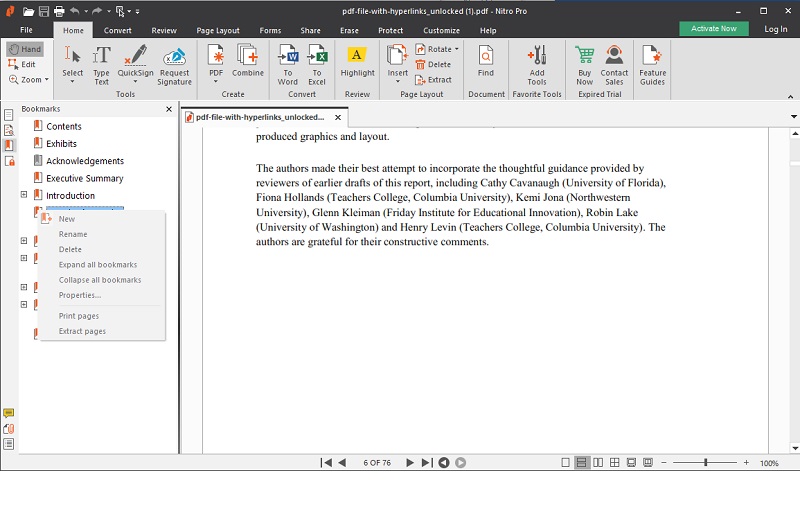
NitroPDF is another software option that removes bookmarks from a PDF file. The PDF software program provides users with a wide range of capabilities in working with PDF files. It is renowned for its ability to create, edit, convert, and secure PDF documents. Furthermore, it can add electronic signature capabilities to documents. It streamlines the document review process, allowing users to annotate, add or remove comments from PDF, and collaborate on PDF files. The tool also supports merging PDFs and splitting them into multiple documents. Its advantage over other tools for removing bookmarks in PDF editors is its ability to generate digital IDs to sign and certificate documents. However, it also requires a valid license to access all its features. The tool may be more suitable for organization and business use.
Distinctive Feature: Integrating cloud-based collaboration and sharing features is its biggest advantage.
What is it best for: It is best for its viewing mode, which allows for easy navigation and reading of PDF documents.
Foxit PhantomPDF is another software solution that can remove bookmarks from a PDF file. However, Foxit PhantomPDF is more than just a bookmark removal tool. It is also a robust PDF editor with different features for managing and working with PDF files. These features include viewing and annotating PDFs and creating and filling out forms. Users can merge and split PDFs, add watermarks and headers/footers, and apply digital signatures to documents. It has the advantage of having multiple options to view options. It includes reverse view, reflow, night mode, and reading mode for a customized viewing experience. Plus, it offers users to read the document out loud with its text-to-speech functionality.
Frequently Asked Questions (FAQs)
Will removing bookmarks affect the document's formatting?
Removing bookmarks from a PDF document will not affect the formatting. The bookmarks are simply a navigation tool and do not impact the content or layout of the document itself. It is only a visual representation for quick access to specific sections of the document.
Can I remove bookmarks selectively, keeping some intact?
Yes, you can remove and disable bookmark view in PDF reader selectively. Most PDF editors can remove individual bookmarks while leaving others intact. This can be useful if you only want to remove certain bookmarks that are no longer needed while keeping others still relevant. Double-check your changes before saving the document to ensure you haven't accidentally removed any important bookmarks.
Conclusion
In conclusion, the ability to remove bookmarks from a PDF document is a simple process. It does not affect the formatting or layout of the document. Removing bookmarks allows for a streamlined reading experience without compromising the document's integrity. Furthermore, users can remove bookmarks while preserving others that are still relevant selectively. This ensures efficient navigation within the document and allows for a more customized reading experience. With that, users can easily manage their PDF documents and share them with others without any unnecessary clutter.
 AcePDF
 Edit HOT
 Convert HOT
 Annotate
 Organize
 Merge POPULAR
 View
View Create
 Compress
 Sign
Sign Protect
 OCR
OCR PDF Form