Creating forms online has become a common way to collect information, and one of the best formats for this is a fillable PDF. These forms allow users to type directly into the document, making it easier, faster, and more accurate than handwritten entries. Moreover, many people and businesses prefer them for applications, surveys, registrations, and other tasks. However, not all PDF viewers can handle fillable or interactive forms properly. Some apps can only open the file but won’t let you type, click checkboxes, or use dropdowns. So, the form will only work as expected if the PDF reader supports interactive fields, such as Adobe Acrobat Reader or other modern PDF apps that allow form inputs. Furthermore, most people prefer Adobe Acrobat for creating fillable forms because of its advanced features. But since not everyone can afford an Acrobat subscription, they are looking for an alternative. Fortunately, you can still make a fillable PDF form without Acrobat using many easy, accessible options. These tools are simple to use and don’t require advanced skills. In this article, you will learn step-by-step methods to create your own fillable PDF forms.
-
Sections
Brief Info
Learn More
-
This section is all about knowing fillable forms
-
These are five tools you can utilize to create a fillable PDF form without Adobe Acrobat
-
Questions and answers about making forms
-
Summary and final thoughts about the topic
Getting to Know Fillable PDF Forms
Fillable PDF forms are digital documents that let people type directly into the fields, instead of writing by hand. They look like regular PDF files, but they include interactive boxes, dropdowns, and checkboxes, where users can type or select. Fillable forms also make collecting information faster and more organized. Moreover, fillable PDFs reduce errors since everything is typed clearly. Unlike standard PDFs, which can only be viewed, fillable PDFs allow users to enter and submit data easily. Overall, they are helpful for anyone who needs to gather data in a simple, clean, and efficient way.
Common Uses of Fillable PDF Forms
- Surveys: Used to gather feedback quickly because users can type answers directly into the form.
- Job Applications: Helps applicants fill out required details neatly without printing anything.
- Registration Forms: Ideal for events or classes that require participants to submit personal information.
- Order Forms: Let customers easily enter product choices and quantities.
- Client Intake Forms: Collect essential customer details for services such as clinics or agencies.
- Feedback Forms: Ensure that users can easily share their comments or suggestions.
- Consent Forms: Enables users to agree to terms by filling in fields and adding digital signatures.
- Application Requests: Useful for permit requests, school submissions, or service inquiries.
How to Make a PDF Fillable Without Adobe | 5 Tools
| Fillable Forms Creators |
Signature Fields |
Form Types |
| AcePDF |
Supported |
Fillable PDFs |
| Jotform |
Supported |
Interactive web + PDF forms |
| Microsoft Word |
Requires add-ins |
Fillable PDFs & Word Docs |
| LibreOffice |
Limited support |
Fillable PDFs & ODF Forms |
| Google Forms |
Not natively supported |
Online Forms (PDF export available) |
For users looking for a PDF creator that is almost as good as Adobe Acrobat, go for AcePDF. This PDF editor offers various tools to create a fillable form easily. It lets you add boxes where users can type information directly. In addition, you can insert checkboxes into a PDF that users can click to select options, providing clear, organized choices. Besides that, the tool also offers drop-down menus with multiple choices inside. With that, your form is tidy and prevents long lists from taking up space. One of the best features of AcePDF is its preview, which lets you check how the form looks before saving. More than that, AcePDF also allows you to import and export data, making information management much easier. You can quickly import data from other forms or send filled-out details to other tools without having to do everything manually.
Step 1. Install the AcePDF
Since you don't have AcePDF yet, choose one of the download buttons above to download the installer. Once you get it, start the installation process and follow the wizard prompts. After installation, the tool will open automatically on your screen.
Step 2. Create a New Document or Open Existing File
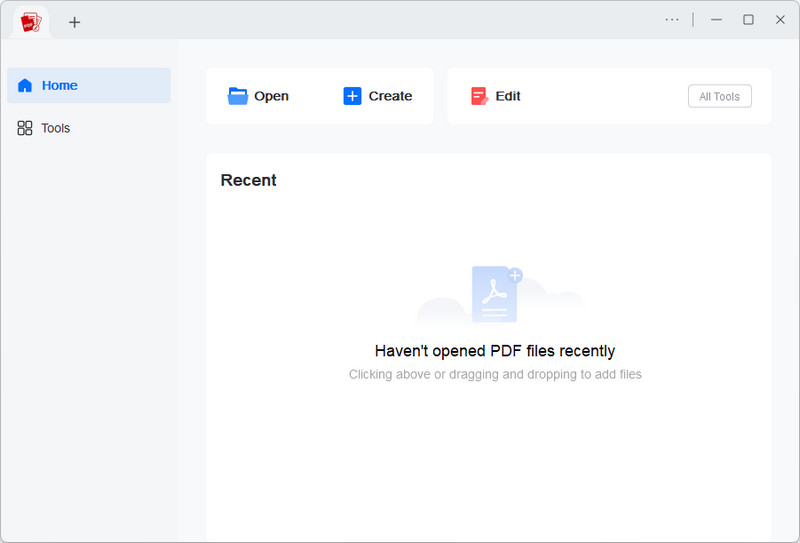
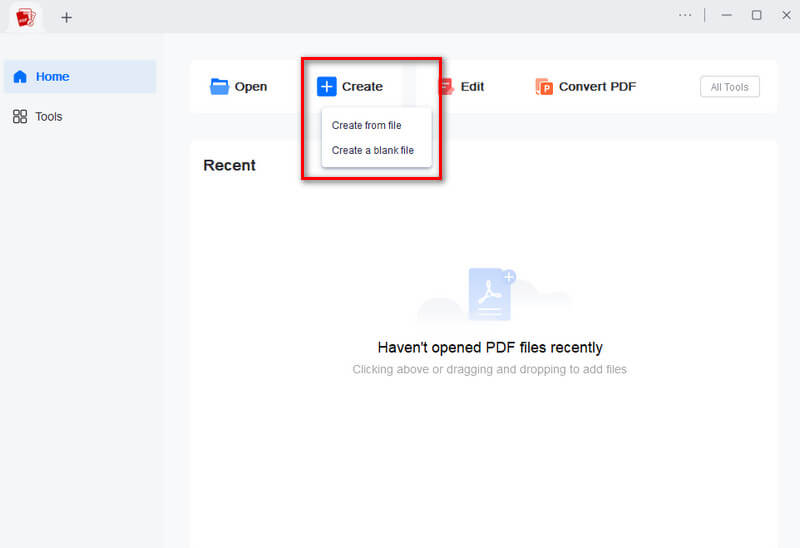
From the main interface, click the "Create" option. Then select whether to create from a file or create a blank file. Next, the tool will open a new workspace where you can start making your form.
Step 3. Create a Fillable Form
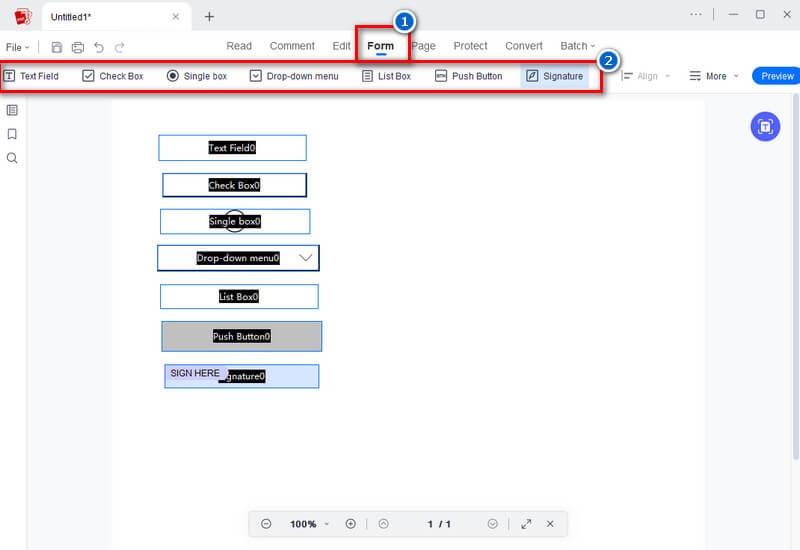
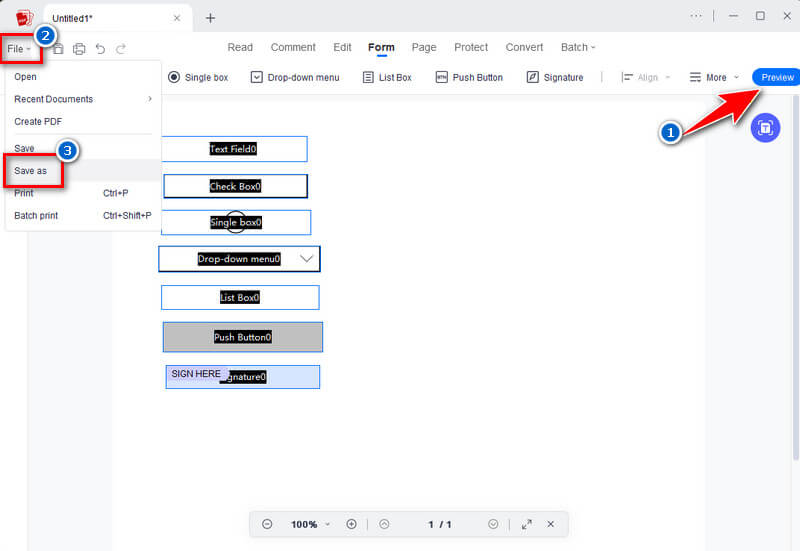
Once the blank or imported file appears, go to the "Form" tab to access all the form-building tools. From there, you can add text fields, checkboxes, push buttons, dropdown menus, and other elements you need. Then, drag each item to the right spot on your page and adjust its size or label.
Step 4. Save the Created Fillable Form
Once finished, click the "Preview" button in the top-right corner to test how the form works. If everything is fine, you can save your file as a fillable PDF. Simply go to the "File" menu and select the "Save As" option. Lastly, select the output folder, rename the form, and save it.
Use guides and alignment tools to keep all form fields evenly spaced. This makes your form look clean and more professional, especially when adding many text boxes and checkboxes.
Jotform is an online PDF form builder that lets you create a fillable PDF form without Adobe. What users love about this form creator is that it also offers 10,000+ premade form templates you can use right away. You also don’t need more time in editing because the tool already has presets for names, email addresses, dropdowns, radio buttons, checkboxes, date pickers, and more. All you have to do is arrange the form elements as you prefer. Furthermore, Jotform allows two-way sync between web forms and PDFs. So, any changes you make in the web form will automatically update in the PDF version, and vice versa. This way, you can keep both versions consistent without manually editing them each time. Aside from that, you can also add your company logo, headers, and design elements to match your brand, making more PDF forms look polished and on‑brand.
User Guide:
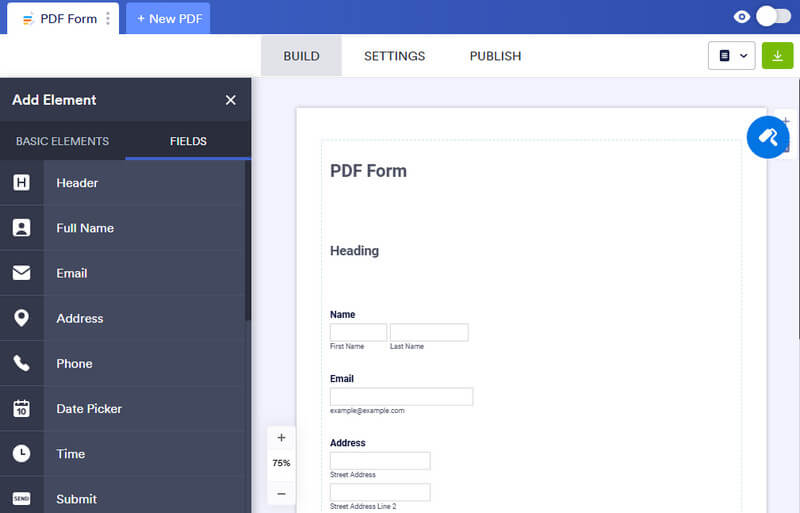
- First, visit the JotForm website in a browser and sign up to get started. Then, on the main homepage, choose whether to create a fillable PDF form or convert an existing PDF to a fillable form. After that, you will go to the tab where you can start making the form.
- Next, look to the left to see the basic elements and field presets. Here, click one of these presets, and it will automatically add to your form. After that, drag the preset you added and drop it where you prefer. Then repeat the process until you finish creating your fillable form.
- When you're done, click the Form dropdown menu and select "View Form" to preview the form you created. Finally, click the "Download" button to get the fillable form in PDF format.
Before finalizing your form, switch to the “PDF Editor” view to adjust spacing and layout. Sometimes elements look different in PDF format, so tweaking them here gives you a cleaner final result.
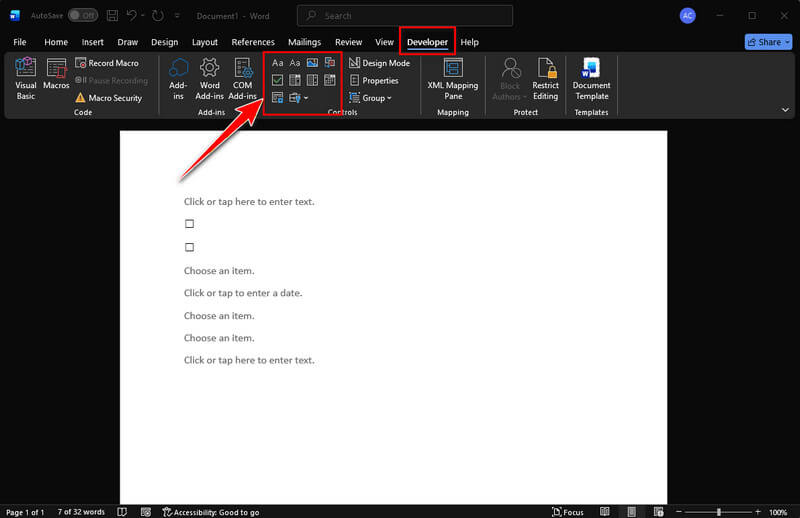
If you don’t want additional software to create a fillable form, you can use Microsoft Word. Yes, Microsoft Word can also easily make a fillable form. Like other PDF form creators, you can add check marks, text boxes, dropdown lists, rich text fields, combo boxes, and many more. In fact, the Developer tab gives access to all form controls, so you can fully customize your fillable form. Likewise, you can set the order in which users move through fields by pressing the Tab key. This improves the flow and speeds up form completion. Moreover, users loved this tool because of its protection feature. Meaning, you can lock the form so users can only fill in the fields without editing other parts. Check how to create a fillable PDF without Adobe below.
User Guide:
- Launch Microsoft Word on your computer. You can find it by searching in the Start menu on Windows or Spotlight on Mac. Once opened, double-click the "Blank Document" option from the main interface to create a new file.
- Since the Developer option is not automatically added to the main tab, you need to add it first. To do it:
Windows: Navigate to the "File" tab and select "Options." From the pop-up menu, navigate to the "Customize Ribbon" option on the left side, then click it. Here, select the "Developer" option, then click "OK" to save.
Mac: For Mac users, the Developer tab is called the "Legacy Tools" option. To enable it, go to the "Word" menu and select the "Preferences" option. Here, navigate to the "Ribbon & Toolbar" menu and check the "Developer" option.
- After enabling the Developer tab/Legacy Tools, you can now start creating your form. You can add text boxes, dropdown menus, combo boxes, and more. Next, set the properties of each field. Simply right-click each form field. Then, select "Properties", and set the field name, options, defaults, or grouping as needed for text boxes, checkboxes, and radio buttons.
- Once done, click the "Design Mode" to check if the fields are working as intended. When you're satisfied, save the form by selecting "File"> "Export". Lastly, click "Create PDF/XPS Document," rename the file, choose an output folder, and hit "Publish" to save the created fillable form in PDF format.
Add “Help Text” to each field from the Properties window. This gives users small hints on what to type, making your form easier to understand and reducing mistakes.
The next tool for creating fillable PDF forms is LibreOffice. It is an office suite that can handle various document formats, including PDF. The tool lets you create forms with field types such as checkboxes, buttons, date fields, text fields, numeric fields, combo boxes, and more. You can set each field with a name, default value, and validation rules to collect accurate, organized data. On the other hand, you can also edit PDFs with LibreOffice and make existing files fillable forms. In addition, this tool allows grouping related fields for better organization. With that, it helps users understand which questions are related and keeps the form structured. Besides that, LibreOffice provides Field Tooltips, where you can add tooltips or help text to guide users on what to enter in each field to avoid mistakes.
User Guide:
- Start by downloading and installing LibreOffice if you don’t have the software yet. If you already have it, launch the tool on your computer. Then, open LibreOffice Writer and create a new document before starting. For some, when you open the tool, it will direct you to a new document.
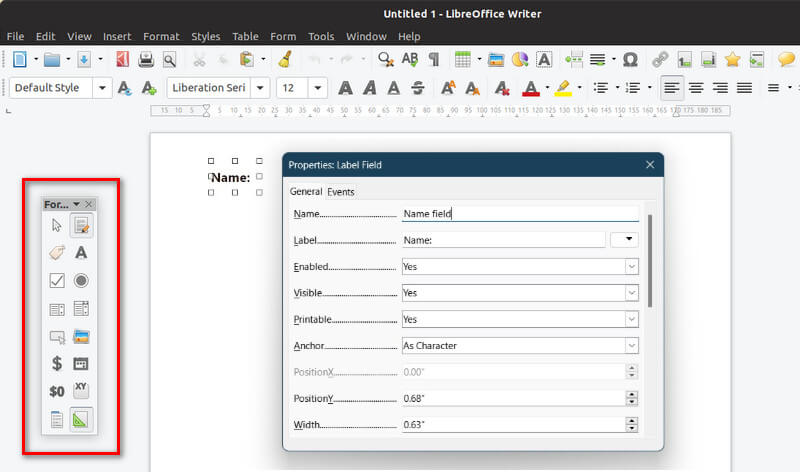
- Next, to access the form fields, go to the “View” menu. Then, locate the “Toolbars” option and select “Form Controls.” After that, the Form Controls box will open. Here, you start adding text labels, text boxes, list boxes, buttons, and more.
- After that, double-click each field to set properties. Once done, review the fillable form you created and ensure it works properly. When satisfied, save the form by selecting “File”> “Export As.” Lastly, choose “Export As PDF”, make desired settings for output, and hit “Export” to save.
Turn on the “Design Mode” while placing your form fields, then turn it off to test the form. Switching between the two helps you quickly catch layout issues and fix fields before exporting.
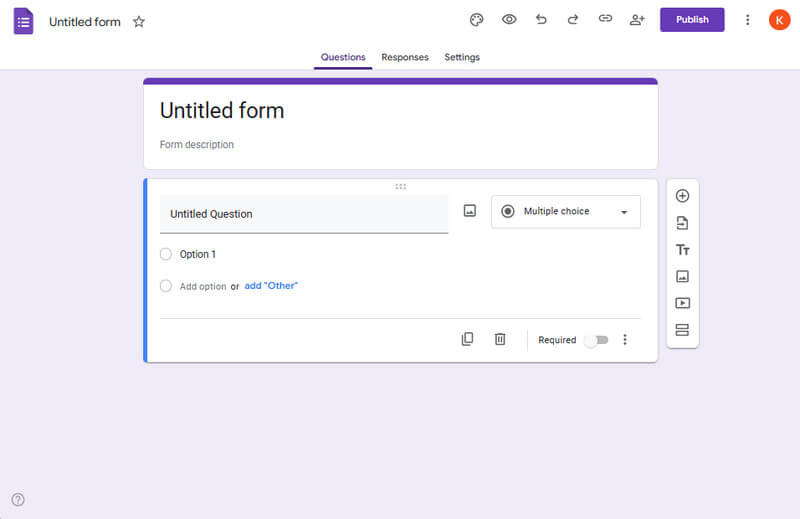
Google Forms is a free form creator you can use to make PDF form fillable without Acrobat. It is part of the Google Workspace suite, which everyone uses to create online surveys or quizzes. The tool offers text, paragraph, multiple-choice, checkboxes, dropdowns, and more to collect information. One of the best features of Google Forms is that it can let you mark questions as required. Thus, users must answer them before submitting to collect all the necessary data. Furthermore, it enables you to change colors, fonts, and backgrounds. With that, you can make your form look more attractive and match your brand or style. On top of that, multiple people can edit the form simultaneously. Therefore, it is perfect and helpful for teams working together to create or update forms.
User Guide:
- First, open the Google Forms website and make sure you have a Google account. From the main homepage, click the “Blank Form” to open a new document. Next, give your form a title and description to let users know its purpose.
- Then, start adding questions by choosing the question type, such as multiple choice, short answer, or checkboxes. You can mark questions as required to ensure users answer them. Next, click the “Add section” button to organize your form into different parts for easier navigation.
- Once your form is ready, customize the theme, colors, and fonts to match your style. Then double-check the form you created to make sure all fields are working. Finally, click the “Publish” button and share your form with your respondents via email or link, or embed it on a website.
Use the built-in “Response Validation” feature to require formats such as email addresses, phone numbers, or specific text. This ensures you gather correct information and prevents users from submitting wrong or incomplete answers.
Frequently Asked Questions
Can I fill out a form on my phone?
Yes, you can fill out digital forms on your phone, like a fillable PDF or an online form. Most PDF apps and web forms work on smartphones. This makes it easy to complete forms anytime, anywhere, without printing.
How to make a fillable PDF form with Acrobat?
Open Adobe Acrobat, go to Tools, and choose “Prepare Form” from the tools menu. Then select a file or create a new document, and Acrobat will automatically detect fields or let you add them manually. Finally, save your file as a fillable PDF so users can type into it.
Can I scan a form and make it fillable?
Yes, you can scan a paper form and convert it into a fillable PDF using tools like Acrobat, JotForm, or AcePDF. The software will recognize the text and allow you to add interactive fields. After adding fields, you can save the scanned form so people can fill it out digitally.
Wrap Up
Creating a fillable PDF form without Adobe Acrobat is easier than many people think. As discussed, several tools are available, including AcePDF, JotForm, Microsoft Word, LibreOffice, and Google Forms. Each tool offering has unique features to suit different needs. Some tools work best for professional PDFs with signatures, while others are ideal for online forms or simple surveys. Moreover, these tools allow you to add text fields, checkboxes, dropdowns, date pickers, and even signature fields without complicated software. They also support previewing, offline filling, and data export, making form creation efficient and versatile. Therefore, you don’t need to rely on expensive or complex software to collect digital information. Finally, try out these tools today to quickly create your own interactive forms and streamline the way you gather data, all without Adobe Acrobat.
 AcePDF
 Edit HOT
 Convert HOT
 Annotate
 Organize
 Merge POPULAR
 View
View Create
 Compress
 Sign
Sign Protect
 OCR
OCR PDF Form